

Support for Nuba Lokal
Decide if and how check-ins and check-outs should be made
1. List View
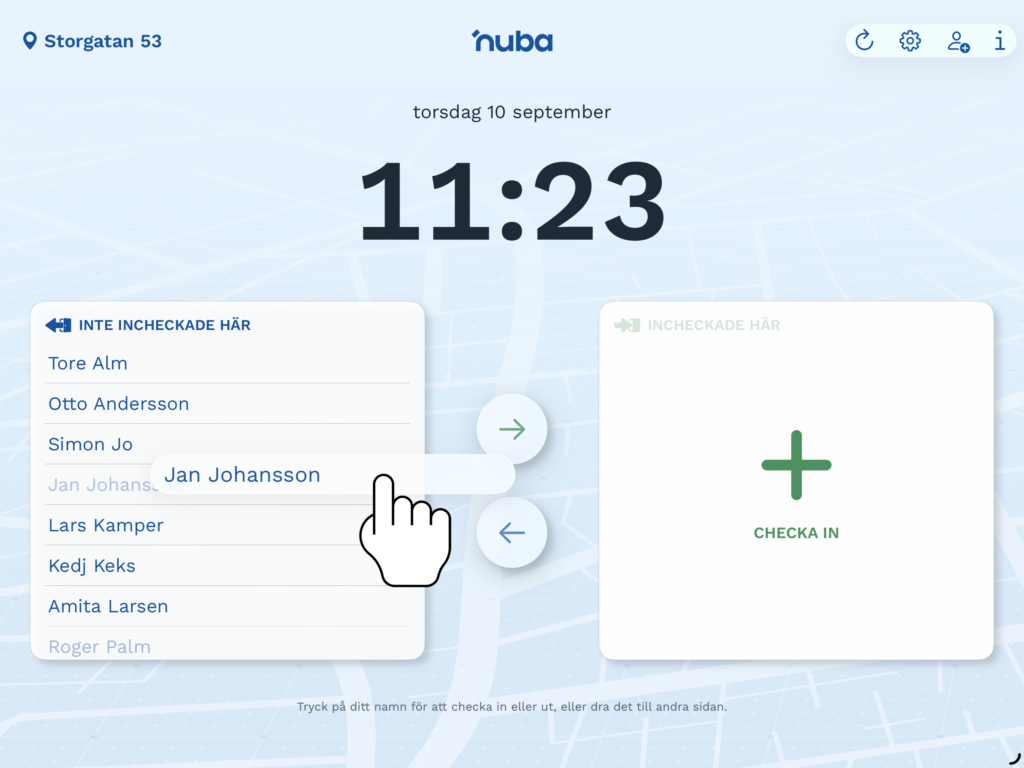
In this view, you register your working hours by moving your name between “Not checked in here” and “Checked in here”.
You can either drag your name between the boxes or select your name and press the relevant arrow.
Verify that Nuba Lokal is connected to the correct workplace. The current location is displayed in the upper right corner.
2. Button View
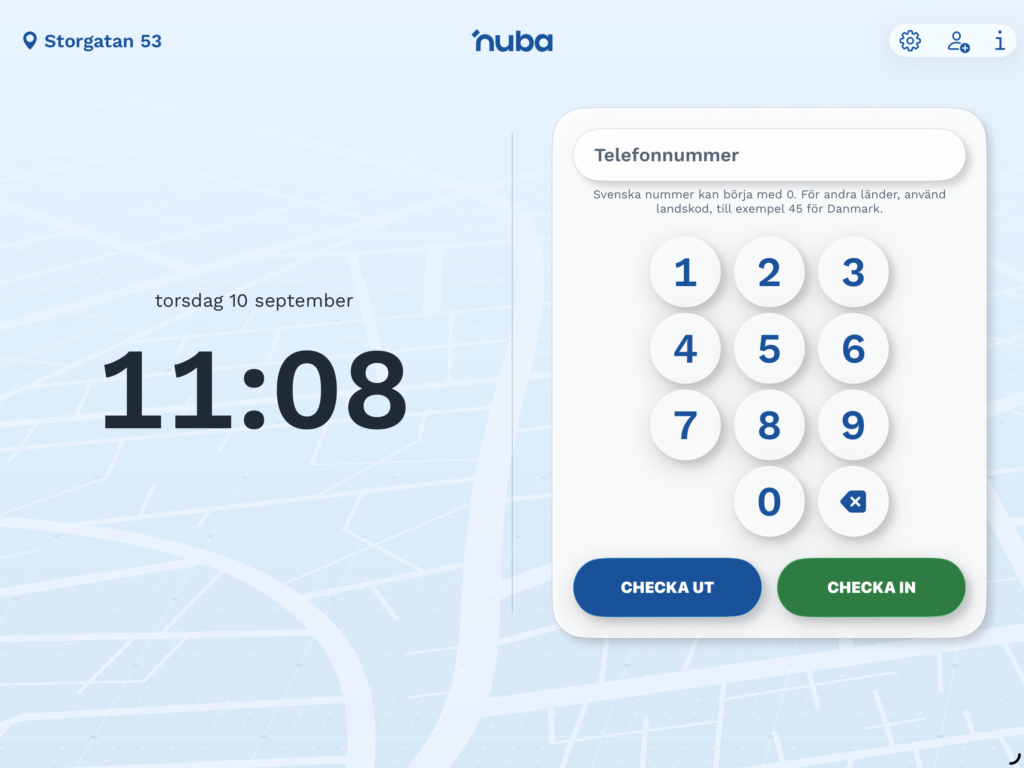
In this view, you register your working hours by entering your phone number and then pressing “Check in” or “Check out”.
When you check in, your work shift begins and the time is saved. When you check out, the work shift ends and the time is saved.
The phone number should be entered only with digits and without spaces.
- Swedish phone numbers are entered without a country code.
- International phone numbers are entered with a country code.
In this view, users cannot see their own or other users’ check-in or check-out status.
3. Create users and send staff ledger
Password for check-in and check-out
If the administrator has activated the password requirement, a box will appear where you need to enter your password when checking in or out.
The password is the same one you use to log in to the Nuba app.
For new users, a temporary password is created that can be used to check in and out. You can change the password by logging in to nuba.se in a web browser.
If you need a new password, you can send an SMS with the text “nuba reset” to 71200.
Add users
If the icon for adding users is displayed in the upper right, new users can be created directly in Nuba Lokal.
To create a user, you need to enter:
- Name
- Phone number
If a staff ledger is used, the personal identity number must also be entered. You can also choose a language and add a note.
Login may be required to create a new user. The administrator determines if login is required and what permissions are needed.
Staff Ledger
If the PL button is displayed at the top, the staff ledger is activated for this location.
During an inspection visit from the Swedish Tax Agency, the staff ledger can be sent directly from Nuba Lokal via email.
You choose how many days back in time should be included. The staff ledger can be sent by anyone using Nuba Lokal.
Settings
Only administrators can view and change the settings for Nuba Lokal on this device.
Tap the gear icon in the upper right and log in to access the settings.
If you want to log out or change the device’s location, select Log out, which is displayed in the upper right corner.
Reload the list
If someone has checked in or out via the Nuba app on their mobile, or if any other change has been made, the list may need to be updated.
Tap the icon to reload the list to display the current status.
